Getting Started with AIM
AOL's Instant Messenger (AIM) is a quick and easy way to instantly communicate with friends and colleagues online. AIM has become an unofficial requirement for many online curriculums due to its versatility and price tag (free). This is an introduction to some of AIM's most important functions:
|
If you want to practice from home, you'll need to download and install the AIM program. You may access the download site by clicking here.
Note: In order for AIM to function, you must be online. For answers to most frequently asked questions, click here.
Getting your screen name
Signing On . . .
-
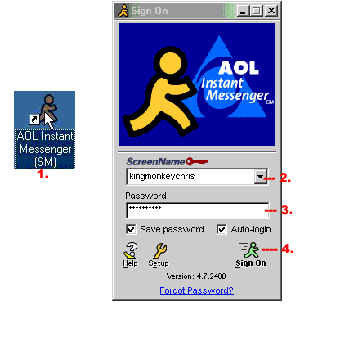
1.Start the AIM program by double clicking on the AIM icon located either on your desktop or on the toolbar at the bottom of your screen.
2.Select the screen name you wish to sign on with by using the pull-down menu located in the first field of the Sign On screen.
3.Type your password in the second field located on the Sign On screen.
4.Click on the Sign On icon.
Now, we will take a look at the method used to disconnect from the AIM.
Signing Off . . .
-
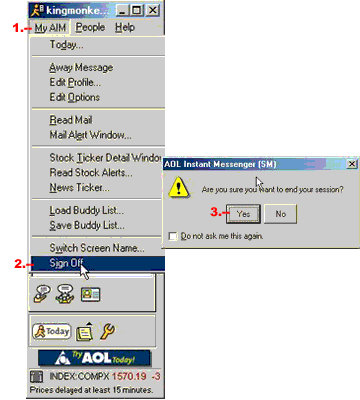
1. Left click on My AIM, at the top of the AIM window. This will open a drop-down menu.
2. Left click on Sign Off, at the end of the list.
3. When prompted "Are you sure you want to end your session," left click on Yes.
In order to send an Instant Message to a buddy, you need to know if they are online or not. You can see if your buddy is online by adding them to your Buddy List. This next lesson will teach you how to add a buddy, but first you need to sign on again.
Adding a Buddy . . .
-
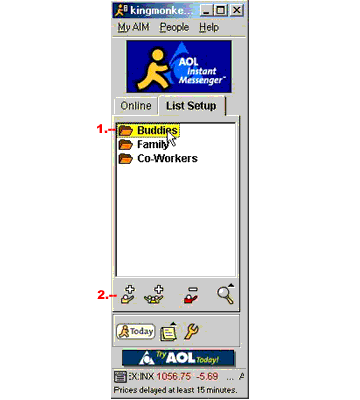
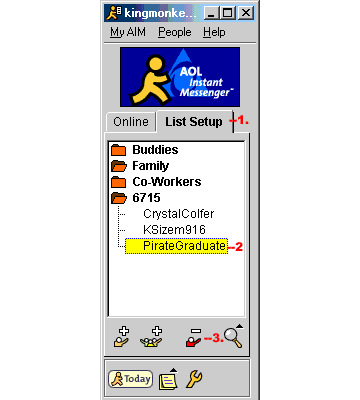
1. Click the "List Setup" tab on the buddy list window.
2. Click the group to which you wish to add your buddy.
3. Click the "Add Buddy" icon on the lower left portion of the window, symbolized by a single yellow "buddy" with a plus sign.
4. Once the "New Buddy" window opens, type in the buddy name you wish to add.
5. Press enter on your keyboard to complete the process.
What if your buddy's screen name changes? We've just learned how to add a new name, but what about the old one? Below, you'll see how to remove a buddy's name.
Removing a Buddy . . .
-
1. Click the "List Setup" tab on the buddy list window.
2. Click the buddy name you wish to delete (the name will be highlighted in yellow).
3. Click the "Delete Item" icon on the lower portion of the window, symbolized by a single red "buddy" with a minus sign.
4. The buddy name is instantly removed from your list.
Now that we have learned how to add and remove names from the Buddy List, we can send an Instant Message!
Instant Messaging . . .
-
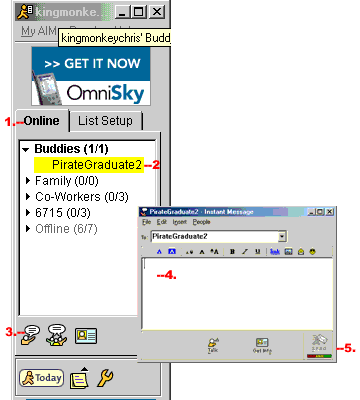
1. Confirm that the buddy you wish to IM is online by locating the buddy name on the "Online" tab of your buddy list window.
2. Click the buddy name you wish to IM (the name will be highlighted in yellow).
3. Click the "Send Instant Message" icon located on the lower left portion of the window, symbolized by a single yellow "buddy" with a dialog bubble. (Note: A shortcut is to double-click the buddy name you wish to IM)
4. The Instant Message screen pops up with a blinking cursor, ready for your message to be typed.
5. After your message is complete, click the "Send" icon, located on the lower right corner of the IM screen.
6. Once you click "send", your message appears on the screen of the recipient, with a dialog screen allowing your buddy to respond.
Sharing Files or FTP . . .
Using FTP sites to download files:
-
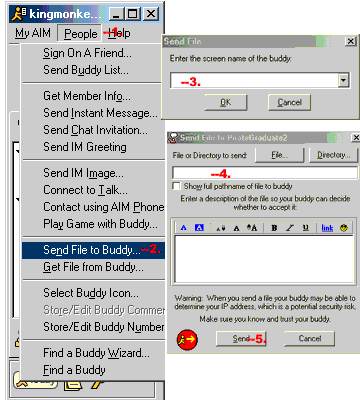
1. Go to "People" at the top of the AIM screen.
2. Scroll down to "Send file to buddy…" and click.
3. A new box will appear. Enter the screen name of the buddy you wish to send the file. Click ok.
4. In the next box, type in the file name and enter a brief description of the file - so your buddy can decide whether to accept the file or not.
5. Click on "Send" at the bottom of the screen.
6. A box will appear - "waiting for file to transfer."
7. And a (transfer completed) box will appear, indicating a successful transfer.