Getting Ready for Dreamweaver
(excerpted from a page created by Iowa's "Information Arcade")
How does
the WWW work?
- What is a web page?
- HTML coding = instructions to the user’s
computer
- HTML: HyperText Markup Language
- HTML is not the same as word-processing
- With word-processing images
are embedded…what you see really is what you get
- With HTML, you’re
only providing instructions to the users’ computers regarding
what to display and how to display it…images are not embedded
in the page.
- What is a server? What is a client?
- Server: a computer that holds your web
pages and sends them out to users (also known as web host or web server)
- Client: the user’s computer (the
one displaying your web page)
- Other terms:
- User: the person looking at your web page
- URL: Uniform Resource Locator (also known as "web address); "http://www.blahblahblah.com"
- ISP: Internet Service Provider
(example: AOL, Earthlink, AT&T, anybody who gives you access to
the Internet)
- How do they interact?
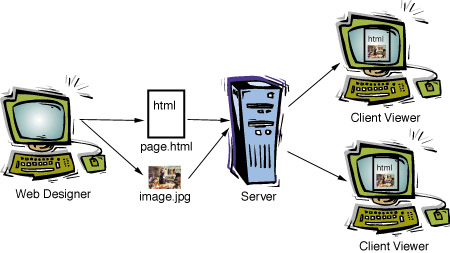
- Why is it important for me to know?
- Understanding the server-client relationship
will help you to understand how the web works. Knowing how the web works
will help you design better pages, and understand more advanced concepts.
- What is a domain name?
- What do they mean and how do they work?
- .com= commercial
- .edu = education
- .net = network
- .org = organization (typically
not-for-profit)
- Layout and Design Issues
- Important note: designing a web page is not like
desktop publishing: WYS is not always WYG
- Web color palate
Only some colors work with the web. You may choose a color and try to implement
it, only to find that the color displays differently.
- Fonts
- HTML = instructions to the user’s computer
for how to display your web page. If you tell the user’s computer
to use a font that isn’t on the user’s hard drive, the computer
will select another font to use.
- Some fonts are standard, like Courier or Times
New Roman. If you use a font that isn’t common, chances are that
your text will display in a font that is more common. If you use a really
rare font, your page may display as strange characters, rather than text.
- The error: using a rare font with nothing to
fall back on, so the font displays as a default font or as different
characters.
- The solution: use a common
font, with backups (select several and use them all…if a user
doesn’t have the first on, the second will display).
- The second solution: If
you want to use an uncommon font for design reasons, create a small
graphic, rather than chance it with text.
- Monitor issues
- Resolution
- Some people have large monitors capable of
high resolution. On these computers, everything will look smaller.
- Design for the least common denominator-- 800
x 600 is usually best. Dreamweaver will allow you to see what your page
looks like at various resolutions, but you can reset your monitor resolution
to a lower resolution.
- Note: in 1999, a study
done by www.statmarket.com found that 55% of computer users had 800x600
resolution, while 25% had 1024x768. Only 2% of computer users had
1280x1024, though this number is expected to rise in the year 2000.
Still, until we see stats that indicate otherwise, design for 800x600.
- Gamma
- If you design on a Mac, the graphics will appear
slightly darker on a PC.
- If you design on a PC, the graphics will appear
slightly lighter on a Mac
- Spaces, Tabs, and Line Breaks
- Spaces: only one space at a time, no more than
one space allowed
- Tabs: Nope
- Line Breaks: If you hit "Enter" in
Dreamweaver, you’ll get a double space line break. If you insert
a line break (shift-Enter, in Dreamweaver), you’ll get a single-space
line break. In HTML, if you’re editing the raw code, hitting Enter
does nothing, but including the HTML tag <br> provides a single
line break.
- Images
- Loading time
- The error: big images = long loading time
- The solution: optimize
images in Fireworks!
- You have about 2 seconds to get the attention
of your audience. Make sure your images don’t take more than 2
seconds to load on the index page, and 5 seconds to load on other pages,
or you’ll lose your audience.
- Resolution
- The error: hi-resolution images = bigger files
= long loading time
- The solution: scan images
at 72 dpi or reduce resolution.
- Coding problems = broken links to images
- Common problems:
- Linking to the hard drive,
rather than the server
- Make sure you link to the server, rather than
the hard drive. A good way to avoid the problem is to use "relative
links", where you link to "image.jpg" as opposed
to "http://www.page.com/image.jpg". Relative links are
also be helpful if you decide to relocate your page. Dreamweaver
generally uses relative links for you.
- Failing to upload images
to the server
- Since your html page is just a set of instructions,
the images are not automatically embedded within the page. You must
upload the image files, as well as the html files, for your page
to display properly. Dreamweaver will ask you if you want to upload
the "dependent files" when you upload an html document.
The "dependent files" are the image files associated with
the web page.
- Netscape vs. Explorer and Mac vs. PC
- Different browsers and different platforms may
display differently occasionally
- Nature of the HTML Beast: designs look different
on different browsers and different platforms.
- Internet Explorer defaults to opening a larger
browser window, so you have more real estate available. If you don’t
look at the page you’re designing in Navigator, too, you’ll
design with more real estate in mind than Navigator will typically show
on opening.
- The error: not examining
the site in multiple browsers and on multiple platforms, so sites display
differently.
- The solution: Technology
is a lot like language: figure out who your target audience is, and
what language they speak. If the majority of your audience uses Macs,
design on a Mac. If they use mostly PCs, design on a PC. If you have
a mixed audience, plan to test your page cross-platform.
- The second solution: Write
a simple JavaScript to identify the users’ browser and platform
and provide either an alert or redirect the user to another page designed
for their platform or browser.