
From the KnowledgeBase
Title:
Removing puvisitor from BlackBerry Devices
Synopsis:
Princeton University offers the puvisitor wireless network for short term access to visitors on campus. Because puvisitor is not intended for wireless devices used regularly on campus by Princeton University faculty, staff, and students, or long term visitors, connection to puvisitor network is limited to 7 days per calendar month and is not available after 3 months of use. If you have previously used puvisitor and now wish to connect to the puwireless network, it is recommended that you remove puvisitor from your device's remembered wireless networks before attempting to connect to puwireless.
To remove the puvisitor network from your BlackBerry device:
*IMPORTANT* To perform this task, your BlackBerry device must be connected to your wireless providers network.
Princeton University offers the puvisitor wireless network for short term access to visitors on campus. Because puvisitor is not intended for wireless devices used regularly on campus by Princeton University faculty, staff, and students, or long term visitors, connection to puvisitor network is limited to 7 days per calendar month and is not available after 3 months of use. If you have previously used puvisitor and now wish to connect to the puwireless network, it is recommended that you remove puvisitor from your device's remembered wireless networks before attempting to connect to puwireless.
Solution:
Please follow these instructions to remove puvisitor from your BlackBerry device's remembered wireless networks.
To remove the puvisitor network from your BlackBerry device:
*IMPORTANT* To perform this task, your BlackBerry device must be connected to your wireless providers network.
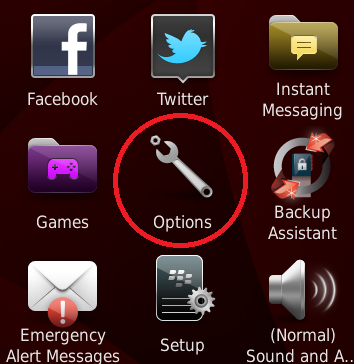
- From the BlackBerry Home Screen click on the Options icon.
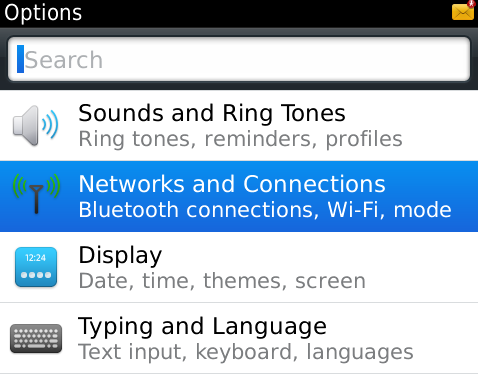
- Select Network and Connections.
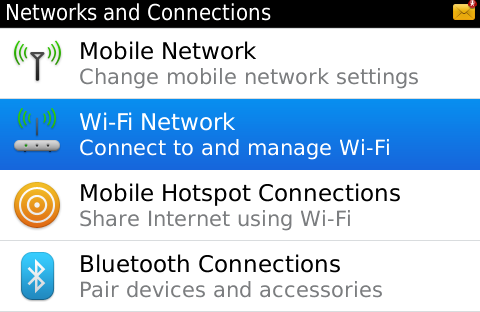
- Select Wi-Fi Network from the menu.
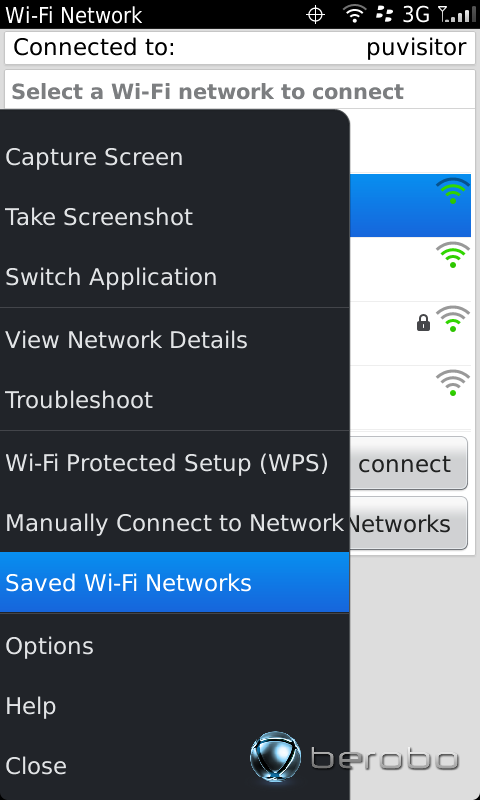
- Highlight puvisitor from the list and click the Menu Button on your device.
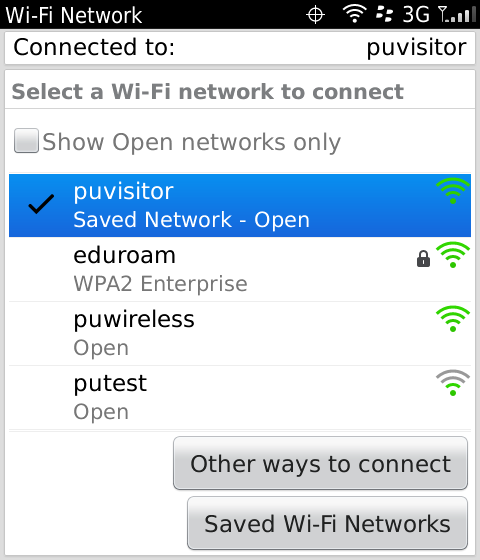
- Select Saved Wi-Fi Networks
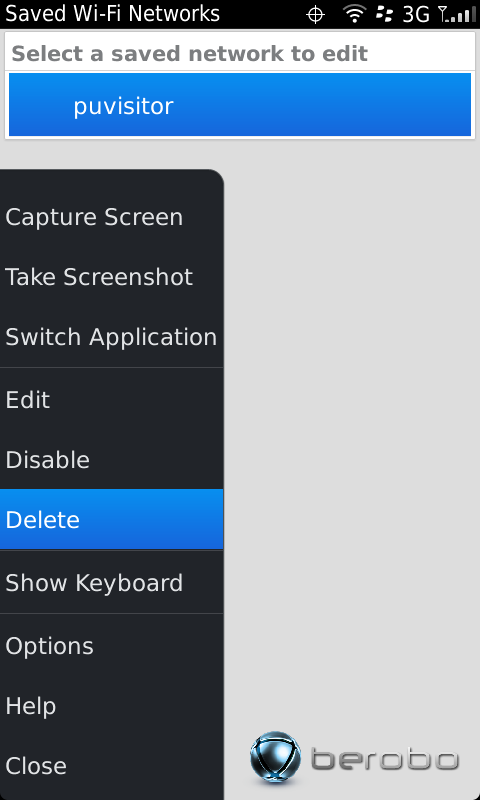
- Highlight puvisitor from the list and click the BlackBerry Menu Button, then click Delete.
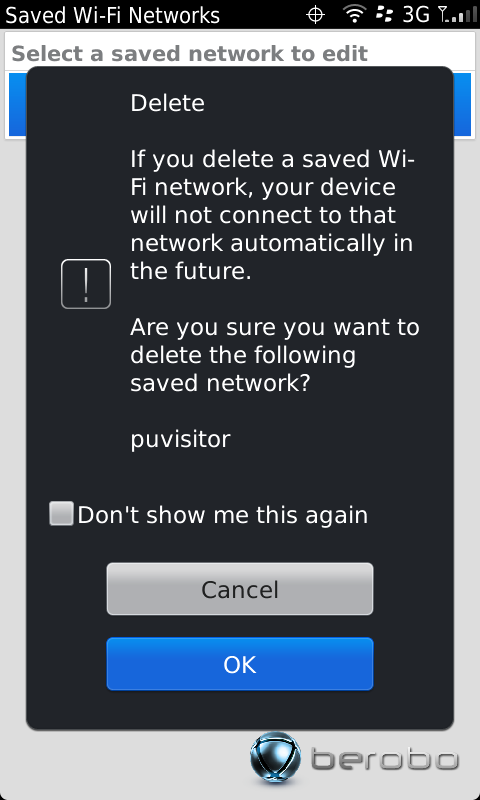
- Select OK from the Delete menu.
Please restart your BlackBerry device.
Last Updated:
DATE
Solution ID:
XXXX
